
Learn how to install Visual Studio Code (VS Code) on Windows 10 and Windows 11. This guide covers downloading, installation, first-time setup, common issues, and must-have extensions.
What is Visual Studio Code?#
Visual Studio Code (VS Code) is a free, lightweight, and open-source code editor developed by Microsoft. It supports hundreds of programming languages through extensions and includes powerful features such as:
- IntelliSense (Smart Code Completion)
- Integrated Terminal
- Git & GitHub Support
- Debugging Tools
- Extensions Marketplace
- AI Features (GitHub Copilot)
System Requirements
| Requirement | Minimum |
|---|---|
| OS | Windows 10 or Windows 11 |
| Processor | 1.6 GHz or Faster |
| RAM | 4 GB (8 GB Recommended) |
| Storage | 500 MB Free Space |
| Internet | Required for Download & Extensions |
Step 1: Download Visual Studio Code
-
Open your browser.
-
Visit the official website:
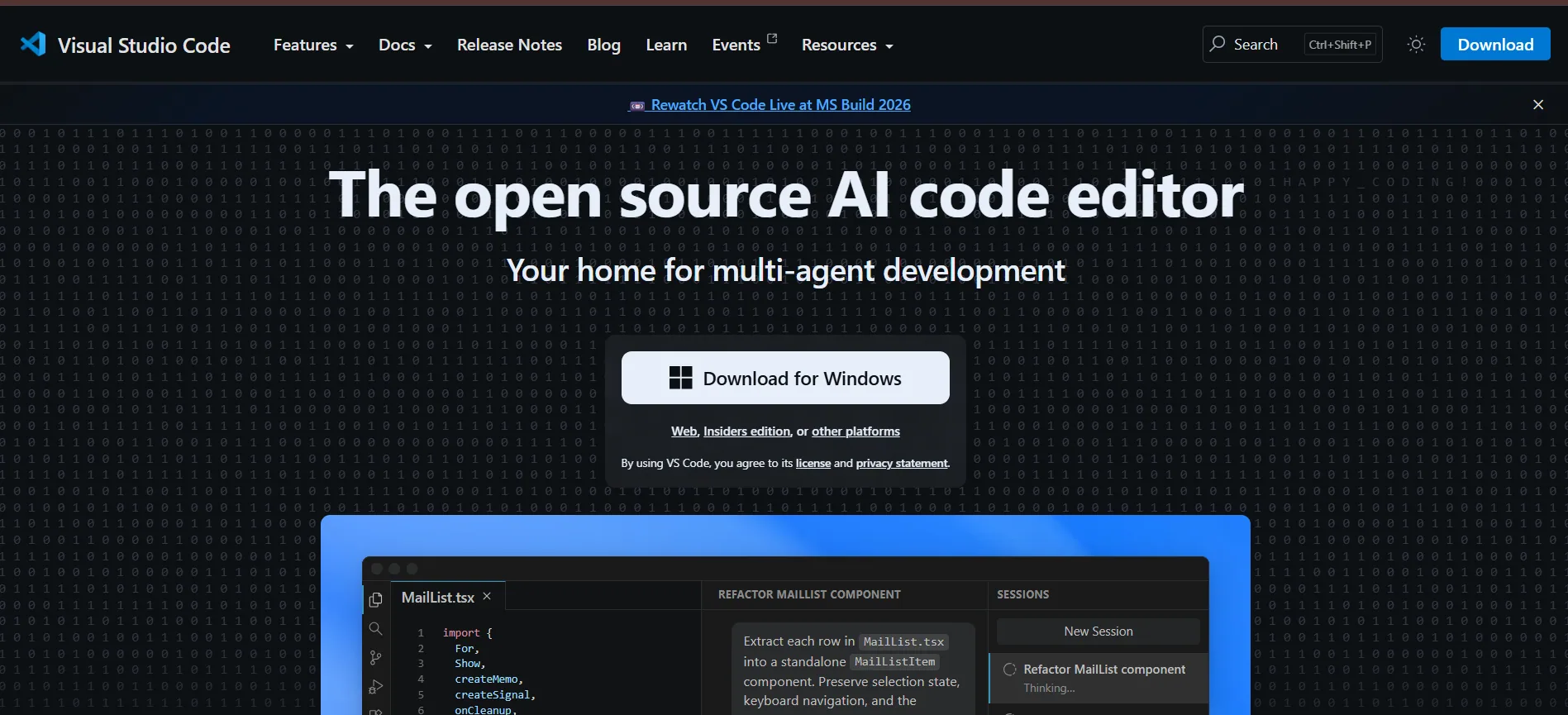
- Click Download for Windows.
The installer will start downloading.
Step 2: Open the Installer
After downloading:
- Open the Downloads folder.
- Double-click
VSCodeUserSetup-x64.exe
Click Yes if Windows asks for permission.
Step 3: Accept License Agreement
✔ Accept the License Agreement
Click
Next
Step 4: Choose Installation Folder
Leave the default folder:
C:\Users\YourName\AppData\Local\Programs\Microsoft VS Code
Click
Next
Step 5: Select Additional Tasks
Enable these options:
- ✔ Create Desktop Icon
- ✔ Add "Open with Code" Action
- ✔ Register Code as an Editor
- ✔ Add to PATH (Recommended)
Then click
Next
Step 6: Install
Click
Install
Wait 1–2 minutes.
Step 7: Launch VS Code
After installation:
✔ Launch Visual Studio Code
Click
Finish
Congratulations!
VS Code is now installed.
Verify Installation
Open Command Prompt.
Run:
code --version
If it shows a version number, VS Code is installed successfully.
First-Time Setup
When VS Code opens:
- Choose a Theme
- Open a Folder
- Install Extensions
- Sign in with GitHub (Optional)
Must-Have Extensions
Web Development#
- Live Server
- Prettier
- ESLint
- HTML CSS Support
- Auto Rename Tag
- Auto Close Tag
Java Development#
- Extension Pack for Java
- Debugger for Java
- Maven for Java
- Spring Boot Extension Pack
Python#
- Python
- Pylance
- Jupyter
C/C++#
- C/C++
- CMake Tools
- Code Runner
Git#
- GitLens
- Git Graph
Database#
- SQLTools
- MySQL
Productivity#
- Error Lens
- Better Comments
- Material Icon Theme
- GitHub Copilot (Optional)
- Code Spell Checker
Useful Keyboard Shortcuts
| Shortcut | Action |
|---|---|
| Ctrl + P | Open File |
| Ctrl + Shift + P | Command Palette |
| Ctrl + ` | Open Terminal |
| Ctrl + / | Comment Line |
| Alt + Shift + F | Format Code |
| Ctrl + B | Toggle Sidebar |
| Ctrl + Shift + E | Explorer |
| Ctrl + Shift + X | Extensions |
Common Problems and Solutions
1. "code" command not recognized#
Solution#
- Reinstall VS Code
- Check Add to PATH
- Restart Command Prompt
2. VS Code won't open#
Solution#
- Restart your PC
- Reinstall VS Code
- Run as Administrator
3. Extensions are not installing#
Solution#
- Check Internet Connection
- Disable VPN
- Restart VS Code
4. Slow Performance#
Solution#
- Disable unnecessary extensions
- Close unused editors
- Increase system RAM
5. Cannot Open Terminal#
Solution#
Go to:
Terminal → New Terminal
Or press
Ctrl + `
6. Permission Denied#
Run VS Code as Administrator once.
Tips for Beginners
- Learn keyboard shortcuts.
- Enable Auto Save.
- Install only required extensions.
- Use Git for version control.
- Keep VS Code updated.
- Organize projects into separate folders.
Why Choose Visual Studio Code?
- Free
- Lightweight
- Fast
- Cross-Platform
- Huge Extension Marketplace
- Built-in Git Support
- Excellent Debugging
- AI Coding Assistance
- Supports 100+ Languages
Conclusion
Visual Studio Code is one of the best code editors for beginners and professional developers. Installation takes only a few minutes, and with the right extensions, you can create a powerful development environment for Java, Python, C/C++, JavaScript, React, Spring Boot, and many other technologies.

